Declaration
public static Rect Window(int id, Rect screenRect, GUI.WindowFunction func, string text, params GUILayoutOption[] options);Declaration
public static Rect Window(int id, Rect screenRect, GUI.WindowFunction func, Texture image, params GUILayoutOption[] options);Declaration
public static Rect Window(int id, Rect screenRect, GUI.WindowFunction func, GUIContent content, params GUILayoutOption[] options);Declaration
public static Rect Window(int id, Rect screenRect, GUI.WindowFunction func, string text, GUIStyle style, params GUILayoutOption[] options);Declaration
public static Rect Window(int id, Rect screenRect, GUI.WindowFunction func, Texture image, GUIStyle style, params GUILayoutOption[] options);Declaration
public static Rect Window(int id, Rect screenRect, GUI.WindowFunction func, GUIContent content, GUIStyle style, params GUILayoutOption[] options);Parameters
| id | A unique ID to use for each window. This is the ID you'll use to interface to it. |
| screenRect | Rectangle on the screen to use for the window. The layouting system will attempt to fit the window inside it - if that cannot be done, it will adjust the rectangle to fit. |
| func | The function that creates the GUI inside the window. This function must take one parameter - the id of the window it's currently making GUI for. |
| text | Text to display as a title for the window. |
| image | Texture to display an image in the titlebar. |
| content | Text, image and tooltip for this window. |
| style | An optional style to use for the window. If left out, the window style from the current GUISkin is used. |
| options | An optional list of layout options that specify extra layouting properties. Any values passed in here will override settings defined by the style or the screenRect you pass in.Additional resources: GUILayout.Width, GUILayout.Height, GUILayout.MinWidth, GUILayout.MaxWidth, GUILayout.MinHeight, GUILayout.MaxHeight, GUILayout.ExpandWidth, GUILayout.ExpandHeight. |
Returns
Rect The rectangle the window is at. This can be in a different position and have a different size than the one you passed in.
Description
Make a popup window that layouts its contents automatically.
Windows float above normal GUI controls, feature click-to-focus and can optionally be dragged around by the end user.
Unlike other controls, you need to pass them a separate function for the GUI controls to put inside the window. Here is a small example to get you started: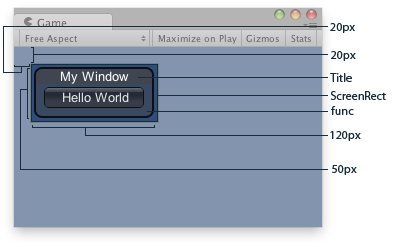
Window in the Game View.
using UnityEngine;

public class ExampleScript : MonoBehaviour
{
    Rect windowRect = new Rect(20, 20, 120, 50);

    void OnGUI()
    {
        // Register the window. Notice the 3rd parameter
        windowRect = GUILayout.Window(0, windowRect, DoMyWindow, "My Window");
    }

    // Make the contents of the window
    void DoMyWindow(int windowID)
    {
        // This button will size to fit the window
        if (GUILayout.Button("Hello World"))
        {
            print("Got a click");
        }
    }
}
The screen rectangle you pass in to the function only acts as a guide. To Apply extra limits to the window, pass in some extra layout options. The ones applied here will override the size calculated. Here is a small example:
using UnityEngine;

public class ExampleScript : MonoBehaviour
{
    Rect windowRect = new Rect(20, 20, 120, 50);

    void OnGUI()
    {
        // Register the window. Here we instruct the layout system to
        // make the window 100 pixels wide no matter what.
        windowRect = GUILayout.Window(0, windowRect, DoMyWindow, "My Window", GUILayout.Width(100));
    }

    // Make the contents of the window
    void DoMyWindow(int windowID)
    {
        // This button is too large to fit the window
        // Normally, the window would have been expanded to fit the button, but due to
        // the GUILayout.Width call above the window will only ever be 100 pixels wide
        if (GUILayout.Button("Please click me a lot"))
        {
            print("Got a click");
        }
    }
}