Projector component
Switch to ScriptingUse a Projector component to create effects such as:
- Decal effects, like bullet holes or paint splatters
- Blob shadows
- Stylized lighting effects
- The effect of a real-world projector, using another CameraA component which creates an image of a particular viewpoint in your scene. The output is either drawn to the screen or captured as a texture. More info
See in Glossary that renders to a Render TextureA special type of Texture that is created and updated at runtime. To use them, first create a new Render Texture and designate one of your Cameras to render into it. Then you can use the Render Texture in a Material just like a regular Texture. More info
See in Glossary
Note: This workflow is compatible only with the Built-in Render Pipelne. For similar functionality in other render pipelinesA series of operations that take the contents of a Scene, and displays them on a screen. Unity lets you choose from pre-built render pipelines, or write your own. More info
See in Glossary, see Decals and projectors.
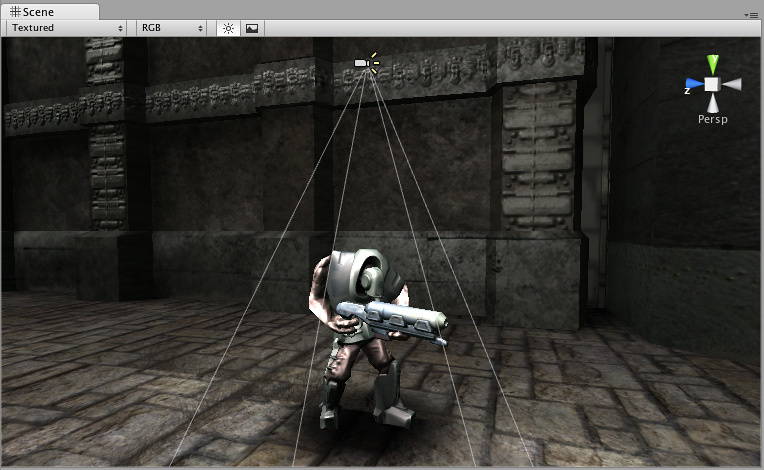
Using the Projector component
A Projector works by projecting a material onto all objects that intersect its frustum. The material must use the Projector/Light or Projector/Multiply shadersA program that runs on the GPU. More info
See in Glossary, available in Unity’s Standard Assets.
Material configuration
When configuring a material to use with the Projector/Light and Projector/Multiply shaders, be aware of the following:
Cookie texture:
- Make sure texture wrap mode is set to “Clamp”
- Turn on “Replicate Border” option in mipmap related import settings
- Use uncompressed texture format
- Projector/Shadow also requires alpha channel to be present (typically Alpha from Grayscale option is ok)
Falloff texture (if present):
- Data needs to be in alpha channel, so typically Alpha8 texture format
- Make sure texture wrap mode is set to “Clamp”
- Make sure leftmost pixelThe smallest unit in a computer image. Pixel size depends on your screen resolution. Pixel lighting is calculated at every screen pixel. More info
See in Glossary column is black; and “Border mipmaps” import setting is on.
Examples
Standard Assets contains example PrefabsAn asset type that allows you to store a GameObject complete with components and properties. The prefab acts as a template from which you can create new object instances in the scene. More info
See in Glossary that demonstrate the use of Projector components.
To use the Prefabs:
- Download Standard Assets
- Import StandardAssets > Effects > Projectors into your Project
- In the Project window, navigate to StandardAssets > Effects > Projectors > Prefabs
- Drag the one of the Prefabs into your Scene
You can use the Prefab as is in your Project, modify it, or examine it to see how it is configured.
Projector Inspector reference

| Property: | Function: |
|---|---|
| Near Clip Plane | Objects in front of the near clip plane will not be projected upon. |
| Far Clip Plane | Objects beyond this distance will not be projected upon. |
| Field Of View | The field of view in degrees. This is only used if the Projector is not Orthographic. |
| Aspect RatioThe relationship of an image’s proportional dimensions, such as its width and height. See in Glossary |
This allows you to tune the height and width of the Projector. |
| Orthographic | If enabled, the Projector will be Orthographic instead of perspective. |
| Orthographic Size | The Orthographic size of the Projection. This is only used if Orthographic is enabled. |
| MaterialAn asset that defines how a surface should be rendered. More info See in Glossary |
The Material that will be projected. |
| Ignore Layers | Objects in Layers that you specify here will not be projected upon. The default value is None. |
Projector