Text Mesh component (legacy)
Switch to ScriptingThe Text MeshThe main graphics primitive of Unity. Meshes make up a large part of your 3D worlds. Unity supports triangulated or Quadrangulated polygon meshes. Nurbs, Nurms, Subdiv surfaces must be converted to polygons. More info
See in Glossary component generates 3D geometry that displays text strings.
Note: This is a legacy component that has limited functionality. For information on more recent, full-featured ways of displaying text, see Creating user interfaces (UI).
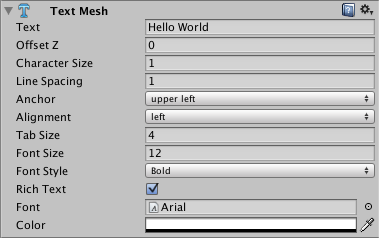
You can create a new Text Mesh from Component > Mesh > Text Mesh.
Properties
| Property: | Function: |
|---|---|
| Text | The text that will be rendered |
| Offset Z | How far should the text be offset from the transform.position.z when drawing |
| Character Size | The size of each character (This scales the whole text.) |
| Line Spacing | How much space will be in-between lines of text. |
| Anchor | Which point of the text shares the position of the Transform. |
| Alignment | How lines of text are aligned (Left, Right, Center). |
| Tab Size | How much space will be inserted for a tab ‘\t’ character. This is a multiplum of the ‘spacebar’ character offset. |
| Font Size | The size of the font. This can override the size of a dynamic font. |
| Font Style | The rendering style of the font. The font needs to be marked as dynamic. |
| Rich Text | When selected this will enable tag processing when the text is rendered. |
| Font | The TrueType Font to use when rendering the text. |
| Color | The global color to use when rendering the text. |
Details
Text Meshes can be used for rendering road signs, graffiti etc. The Text Mesh places text in the 3D sceneA Scene contains the environments and menus of your game. Think of each unique Scene file as a unique level. In each Scene, you place your environments, obstacles, and decorations, essentially designing and building your game in pieces. More info
See in Glossary. To make generic 2D text for GUIs, use a GUI Text component instead.
Follow these steps to create a Text Mesh with a custom Font:
- Import a font by dragging a TrueType Font - a .ttf file - from the Explorer (Windows) or Finder (OS X) into the Project View.
- Select the imported font in the Project View.
- Choose GameObject > Create Other > 3D Text.
You have now created a text mesh with your custom TrueType Font. You can scale the text and move it around using the Scene ViewAn interactive view into the world you are creating. You use the Scene View to select and position scenery, characters, cameras, lights, and all other types of Game Object. More info
See in Glossary’s Transform controls.
Note: If you want to change the font for a Text Mesh, need to set the component’s font property and also set the texture of the font material to the correct font texture. This texture can be located using the font asset’s foldout. If you forget to set the texture then the text in the mesh will appear blocky and misaligned.
Best practices
- You can download free TrueType Fonts from 1001freefonts.com (download the Windows fonts since they contain TrueType Fonts).
- If you are scripting the Text property, you can add line breaks by inserting the escape character “\n” in your strings.
- You can use simple markup to style text meshes. See the Styled Text page for more details.
- Fonts in Unity render the font glyphs to a texture map before any further rendering. If the font size is set too small, these font textures will appear blocky. Since TextMesh assets are rendered using quadsA primitive object that resembles a plane but its edges are only one unit long, it uses only 4 vertices, and the surface is oriented in the XY plane of the local coordinate space. More info
See in Glossary, it’s possible that if the size of the TextMesh and font texture differ, the TextMesh might display incorrectly.
TextMesh